

Last Updated: October 22, 2026
Quick Summary
Remote access tools for law firm staff are the systems that let attorneys and support staff reach case files, practice management software, and each other from outside the office without exposing client data. Every remote setup needs four layers: network access, document and matter systems, communication tools, and identity controls. Firms usually over-invest in network access and under-invest in permissions.
- Secure remote access requires every connection to be authenticated, encrypted, logged, and limited to assigned matters.
- A VPN extends the firm’s network to a device; remote desktop software streams a firm computer’s screen to the user.
- Role-based access means each person sees only the matters and systems their job requires.
- On the final offboarding day, disable the account, revoke multi-factor tokens, transfer files, and collect devices.
- Map your data first, then pick the access layer, then pilot with one practice group for two weeks.
Table of Contents
- Why Remote Access Tools for Law Firm Staff Decide Whether Your Firm Can Work From Anywhere
- The Four Layers Every Remote Setup Needs
- Secure Remote Access for Law Firms: What Confidentiality Actually Requires
- Law Firm VPN Software vs. Remote Desktop Software for Law Firms
- Remote Work Tools for Law Firms: Practice Management, Document Access, and Collaboration
- Role-Based Access, Onboarding, and Offboarding Procedures
- IT Support, Help Desks, and Business Continuity When Staff Work Remotely
- How to Choose and Roll Out Remote Access Tools for Law Firm Staff
- Conclusion
- Frequently Asked Questions
Why Remote Access Tools for Law Firm Staff Decide Whether Your Firm Can Work From Anywhere
Remote access tools for law firm staff are the systems that let attorneys and support staff reach case files, practice management software, and each other from outside the office without exposing client data. The hard part is deciding what “access” should mean before you buy anything. (Source: NIST’s Cybersecurity Framework)
Most firms get this backwards. They pick a VPN or a remote desktop product first, then try to force their workflows into it. The result is predictable: staff work around the system, files end up on personal drives, and confidentiality quietly erodes.
Below, we break down the four layers every remote setup needs, compare the two dominant access architectures, and give you the security checklist and offboarding procedure that most guides skip entirely.
The Four Layers Every Remote Setup Needs
A workable remote law practice rests on four distinct layers: network access, document and matter systems, communication tools, and identity controls. Miss any one and the others get weaker.
- Network access: how a device reaches firm resources. This is your VPN, remote desktop, or zero-trust gateway.
- Document and matter systems: the cloud-based systems of record where client records, deadlines, and tasks actually live.
- Communication: video conferencing, internal messaging, and client-facing channels.
- Identity and permissions: who can see what, and how quickly you can revoke it.
Firms usually over-invest in layer one and under-invest in layer four. That’s a mistake. A perfect VPN with sloppy permissions still lets a departing paralegal copy a matter file on their last day.
Secure Remote Access for Law Firms: What Confidentiality Actually Requires
Secure remote access for law firms means every connection is authenticated, encrypted, logged, and limited to the specific matters that person is assigned to. Encryption alone is not confidentiality.
Here’s the part that catches people: confidentiality obligations under the ABA Model Rules of Professional Conduct require reasonable efforts to prevent inadvertent or unauthorized disclosure of client information. The ABA Model Rules of Professional Conduct, Rule 1.6 is the reference point most state bars build on, though your own jurisdiction’s adoption and commentary govern your obligations. Check your state bar’s guidance rather than assuming the model rule reads identically where you practice.
A Practical Remote-Access Security Checklist for Staff
Run this before anyone logs in from a coffee shop:
- Firm-issued device only, with full-disk encryption and automatic screen lock
- Multi-factor authentication on every system holding client records
- No client files saved to local drives or personal cloud accounts
- Unique login per person, never shared credentials
- Automatic session timeout after inactivity
- Home router on WPA3 or WPA2 encryption, not open Wi-Fi
- Privacy screen or private room for calls involving client matters
- Immediate report of lost or stolen devices to the firm’s designated contact
The most common failure we see is shared logins. When three staff members use one account, you cannot audit who accessed a matter file, and you cannot revoke access for one person without disrupting the others. The consequence is real: in a fee dispute or a breach inquiry, you have no defensible access record.
Law Firm VPN Software vs. Remote Desktop Software for Law Firms
A VPN extends the firm’s network to a remote device; remote desktop software streams a firm computer’s screen to the user. They solve different problems, and the right choice depends on where your data lives.
When a VPN Is the Right Call
VPNs work well when your files and software sit on servers inside the office. Staff connect, and their device behaves as if it were at their desk. The appeal is familiarity and relatively straightforward deployment.
The drawback is that a VPN typically grants broad network access once connected. A compromised laptop becomes a door into everything. If you go this route, pair it with network segmentation and per-matter folder permissions, not just a login prompt.
When Remote Desktop Wins
Remote desktop software for law firms shines when you want data to never leave firm-controlled machines. The user sees a streamed desktop; files stay on the host. For firms handling sensitive litigation files, that containment is worth a lot.
Trade-offs exist. Remote desktop sessions can be sluggish over weak connections, and host machines need to stay powered and patched. Many firms now run both: remote desktop for heavy document work, VPN or a zero-trust gateway for lighter tasks.
| Approach | Where Data Lives | Best For | Main Drawback |
|---|---|---|---|
| VPN | Firm servers | Firms with on-premise systems | Broad access if a device is compromised |
| Remote desktop | Firm host machines | Sensitive litigation files | Performance depends on connection quality |
| Cloud-based systems | Vendor-hosted platform | Distributed teams, solo practitioners | Requires disciplined permissions |
Remote Work Tools for Law Firms: Practice Management, Document Access, and Collaboration
The strongest remote setups put the system of record in the cloud, so access does not depend on a single office machine. Practice management platforms handle matters, deadlines, tasks, and client records in one place. Document management keeps versions straight.
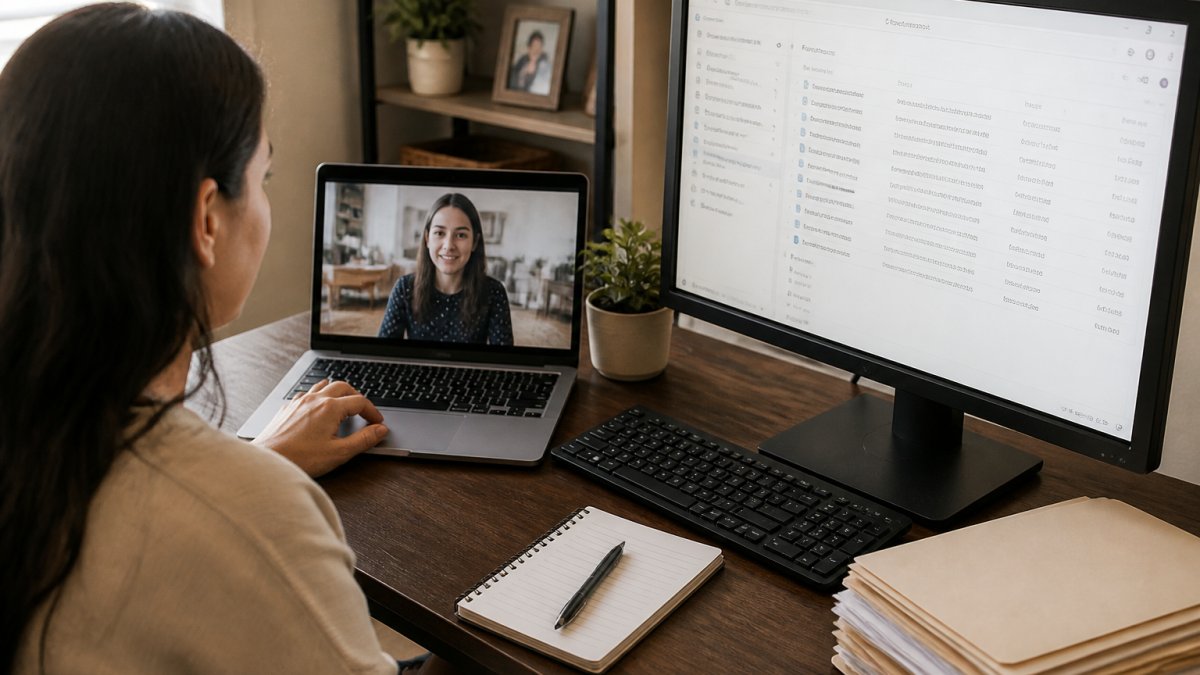
What most guides miss is that the tool list matters less than the rule attached to it. Pick one system of record for client records and forbid duplicates. Firms that let staff keep “working copies” on desktops lose version control within weeks.
For small law firms and solo practitioners, cloud-based systems also solve a staffing problem. That’s exactly the model we build at Bluebook Helpers: our legal staff train directly in your firm’s software, so document access and matter management follow your existing workflow rather than a parallel one.
Role-Based Access, Onboarding, and Offboarding Procedures
Role-based access means each person sees only the matters and systems their job requires, and it must be paired with a documented offboarding sequence. Access you cannot revoke quickly is access you do not control.
A workable structure:
- Attorneys: full access to assigned matters, read access to firm-wide templates
- Paralegals and support staff: matter-level access tied to active assignments
- Contract and virtual staff: scoped to specific matters, with a defined end date
- Administrators: system configuration only, no client file access by default
Offboarding deserves its own checklist. On the final day, disable the account, revoke multi-factor tokens, transfer file ownership, collect devices, and confirm the change in writing. Do it the same day, not “by end of week.”
Set a calendar reminder to review permissions quarterly. Firms that audit access only at onboarding almost always find stale accounts for people who left months ago, still active and still able to open client records.
IT Support, Help Desks, and Business Continuity When Staff Work Remotely
Remote staff need a single, known channel for access requests and incident resolution, plus a written plan for what happens when systems go down. Without both, small problems become lost billable hours.
Set up a help desk with ticketing so requests don’t vanish into text threads. Define response time expectations and publish them.
Business continuity is the gap we see most often. Ask three questions now: If the practice management platform is down for a day, how does the firm capture deadlines? If a partner’s laptop dies, where is the backup?
The firms that handle outages well are not the ones with the most tools. They are the ones that wrote down the fallback procedure before they needed it.
How to Choose and Roll Out Remote Access Tools for Law Firm Staff
Choose by starting with where your data lives, then match the access layer, then test with one practice group before firm-wide rollout. Buying in the reverse order is how firms end up with shelfware.
A rollout sequence that works:
- Map your data. List every system holding client records and where it physically resides.
- Pick the access layer. On-premise data points to VPN or remote desktop; cloud systems point to identity and permissions work.
- Set permissions before accounts. Build the role structure first, then create logins inside it.
- Pilot with one group. Run a single practice area for two weeks and log every friction point.
- Train on the rules, not just the buttons. Staff need to know what they may not do, not only where to click.
- Review at 30 and 90 days. Check adoption, help desk volume, and permission accuracy.
Cost planning deserves honesty here. Licensing, training time, and IT support all carry real costs, and the total depends heavily on firm size and existing systems. We won’t quote you a number we can’t stand behind. Compare vendor pricing directly and factor in the staff hours your rollout will consume.
This is also where staffing decisions intersect with tooling. If your remote capacity depends on hiring locally, overhead climbs fast.
Conclusion
The firms that struggle with remote work rarely fail because they chose the wrong VPN. They fail because permissions, offboarding, and continuity planning never got the same attention as the software purchase. Get those three right and the tool choice becomes straightforward.
If your bottleneck is capacity rather than connectivity, Bluebook Helpers can help. Our virtual legal staff cost significantly less than local equivalents, work around your firm’s schedule, train hands-on in your specific software, and are monitored continuously for performance and attendance. Book a consultation and we’ll map your remote workflow to the right support model.
Answers to common questions about remote access tools appear below.
Frequently Asked Questions
What is the difference between a VPN and remote desktop software for law firm staff?
A VPN encrypts the connection between a staff member’s device and the firm’s network, so the user works in local applications while traffic is tunneled. Remote desktop software instead streams a session from an office machine, so files never leave the firm’s machine and the user sees the office desktop. VPNs are lighter and cheaper but depend on the local device being patched and secured. Remote desktop gives tighter control over where client records live, at the cost of needing an always-on office computer and more bandwidth.
How can law firms give staff secure remote access to files?
Start with role-based permissions in the document management system, so each person sees only the matters they work on. Require multi-factor authentication, device encryption, and automatic session timeouts. Prefer cloud document management with audit logs over emailing files or using personal storage accounts. For secure remote access for law firms, also confirm the vendor offers access logs you can review, and set a written rule that confidential information stays inside approved systems. Test the setup with one practice group before firm-wide rollout.
Can law firm staff access case management software remotely?
Yes, most modern practice management platforms are cloud-based and reachable from any browser with a login, multi-factor authentication, and the permissions you assign. The practical limits are usually local: home Wi-Fi quality, whether the platform’s mobile app covers the tasks staff need, and whether document previews load quickly over a remote connection. Check with the vendor about uptime commitments and audit logging before you move deadlines and client records into it.
How can a small firm support remote staff without an in-house IT team?
Two options work well. First, a managed service provider can handle device setup, patching, help desk tickets, and offboarding for a predictable monthly fee. Second, virtual staffing partners such as Bluebook Helpers train assigned staff on your specific software and tools, monitor attendance and performance, and replace a staff member at no extra cost if issues arise, which removes much of the day-to-day supervision burden. Whichever route you take, keep a written access request and offboarding checklist so no account stays open after someone leaves.

